
Short answer
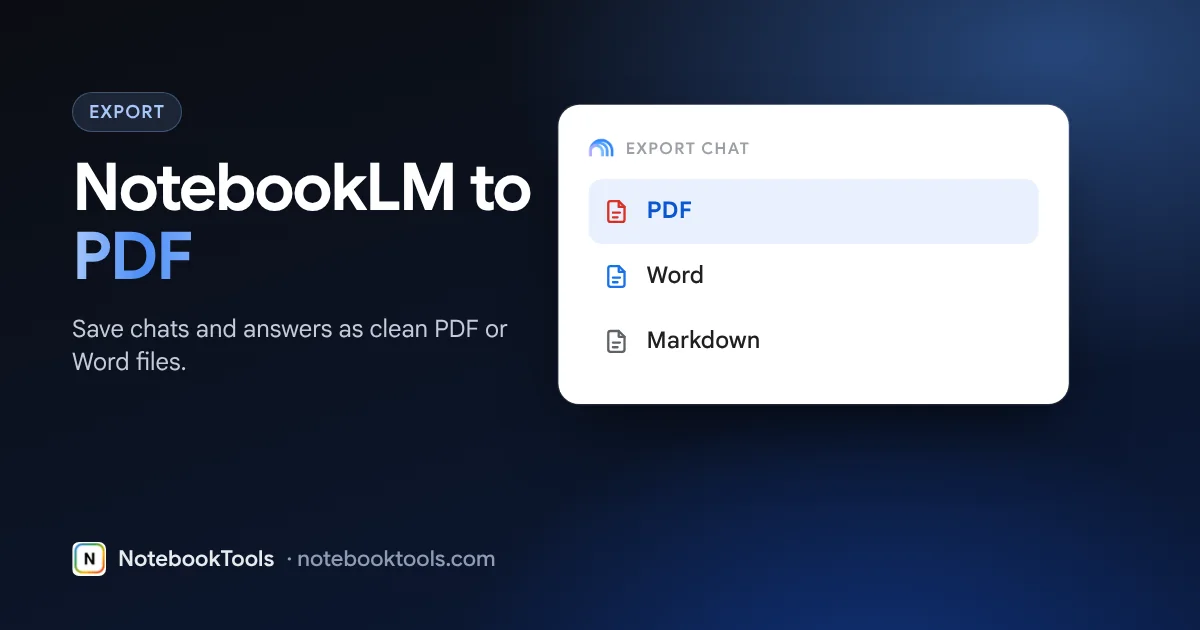
NotebookLM has no publicly documented button that exports a whole chat to PDF or Word. Natively you can copy a response, save it to a note with Save to note, and send a note to Google Docs, where File → Download gives you PDF or Word (.docx). For a full chat or a clean single answer in one click, a Chrome extension such as NotebookTools exports to PDF, Word or Markdown.
NotebookLM (now Gemini Notebook) is good at answering questions from your sources. Getting those answers out is harder. Teachers want a worksheet they can print. Students want revision notes as a PDF. Researchers want the conversation saved as a record. This guide covers what NotebookLM can do by itself, two manual workarounds, and the one-click route.
Your options at a glance
| Method | What you get | Formats | Effort |
|---|---|---|---|
| Copy a response | One answer, pasted where you want it | Whatever app you paste into | Low per answer, high for a long chat |
| Save to note, then export to Docs | One answer per note, with formatting | Google Doc, then PDF or .docx from Docs | Medium |
| Browser print to PDF | Whatever is visible on the page | Low, but messy output | |
| NotebookTools chat export (Pro) | The whole chat, or just the last answer | Chat: Markdown, plain text, JSON, CSV, HTML, PDF. Last answer: PDF, Word, Markdown | One click |
What NotebookLM lets you do natively
Google's help pages describe three ways to keep an answer inside NotebookLM. None of them exports the full conversation as a file.
- Copy a response. Each answer in the chat has a copy option. You paste it into Docs, Word or an email. Citations do not come with it as working links.
- Save to note. Under an answer you like, choose Save to note. Google says the note keeps the original formatting, including tables and inline citations. Notes sit in the notebook, next to your Studio outputs.
- Convert a note to a source. A saved note can be turned into a source, so NotebookLM can cite it in later answers and Studio outputs. This keeps the answer in the notebook; it does not give you a file.
Google's help also describes an Export to Docs option in a note's menu. It opens the note as a new Google Doc in a new tab. Edits you make in Docs do not sync back to the note. As far as Google's public documentation goes, there is no built-in export of the full chat history. Note also that duplicating a notebook copies sources and Studio content but not chat history or notes, so the chat is easy to lose.
Workaround 1: save to a note, then download from Google Docs
This is the cleanest free route for a few answers. It gives you a real PDF or Word file.
- Ask your question in the NotebookLM chat and wait for the full answer.
- Choose Save to note under the answer.
- Open the note, open its menu (the three dots), and choose Export to Docs. A new Google Doc opens in a new tab.
- In Google Docs, tidy the layout if needed: headings, page breaks, a title.
- Choose File → Download and pick PDF Document or Microsoft Word (.docx).
Repeat for each answer. For a chat with twenty answers, that is twenty notes and twenty Docs, or a lot of copy and paste into one Doc. If menus look different in your account, the option names may have changed since Google's help was written; the idea is the same.
Workaround 2: print the page to PDF
Every desktop browser can save the current page as a PDF. In Chrome, press Ctrl+P (⌘+P on Mac) and choose Save as PDF as the destination.
It works in a pinch, but the result is rarely usable as a handout. NotebookLM is a three-panel app: the PDF often includes the Sources and Studio panels, cuts long chats off at what is on screen, and keeps buttons and citation chips. Use it when you need a quick record, not a clean document.
One click: NotebookTools chat export
NotebookTools is an independent Chrome extension for NotebookLM. Its Pro plan adds two export tools inside the NotebookLM page. The export NotebookLM chat to PDF feature page shows both in action.
Export the whole chat
- Install NotebookTools from the Chrome Web Store and open a notebook in NotebookLM.
- Click Export chat, which NotebookTools adds above the chat box.
- Pick a format: Markdown, plain text, JSON, CSV, HTML or PDF.
- The file downloads, named after your notebook. For PDF, a print-ready page opens; choose Save as PDF.
Export only the last answer
Teachers making an exam paper or worksheet usually want one answer, laid out as a page. The last-answer export keeps headings, numbered lists, tables and bold text, and leaves out the citation chips, buttons and your prompt. You can save it as:
- PDF: a print-ready view that you save with your browser's Save as PDF. Turn off "Headers and footers" in the print dialog for a clean page.
- Word: a .doc file that Word (and Google Docs) opens and edits.
- Markdown: for Obsidian, Notion, GitHub or any notes app.
Which format should you pick?
| You want to… | Best format |
|---|---|
| Print a worksheet or handout | PDF (last answer) |
| Edit the text before sharing | Word, or Export to Docs |
| Keep notes in Obsidian or Notion | Markdown |
| Keep a full research record | Whole chat as PDF or HTML |
| Analyse questions and answers in a spreadsheet | CSV or JSON |
Tips for cleaner exports
- Ask for the layout you want. "Format this as a worksheet with numbered questions and an answer key at the end" gives a better page than tidying it later. Our NotebookLM prompts guide has more examples.
- Ask for tables when you can. Tables survive export to Word and PDF well and are easy to scan.
- Export before you clear the chat. Once a chat is deleted, the answers are gone unless you saved them as notes.
- Keep citations in mind. Exports outside NotebookLM lose clickable citations. If you need to show where a claim came from, ask NotebookLM to name the source in the text.
- Use notes for answers you will reuse. Saving to a note, then converting it to a source, lets later answers build on it.
Students can combine this with the workflow in how to use NotebookLM to study: generate a study guide or quiz in chat, then export it as a PDF to revise offline.
FAQ
Can you export a NotebookLM chat?
Not with a built-in button, as far as Google's public help pages show. You can copy responses, save them to notes and export notes to Google Docs. A Chrome extension such as NotebookTools exports the whole chat as Markdown, text, JSON, CSV, HTML or PDF.
How do I save a NotebookLM chat as a PDF?
Save the answer to a note, export the note to Google Docs, then use File, Download, PDF Document in Docs. Printing the page to PDF also works but includes the side panels and buttons.
How do I export NotebookLM to Word?
Export a note to Google Docs and download it as Microsoft Word (.docx), or use the NotebookTools last-answer export, which saves a Word file directly.
Can I download NotebookLM notes?
Notes can be exported to Google Docs from the note menu. From Google Docs you can download them as PDF, Word or other formats.
Is there a NotebookLM to PDF Chrome extension?
Yes. NotebookTools is an independent Chrome extension that adds Export chat and last-answer export to NotebookLM. Imports are free; chat export is part of the $49 one-time Pro plan.
Does exporting keep NotebookLM citations?
Saving to a note keeps inline citations inside NotebookLM. Files exported outside NotebookLM lose clickable citations, so ask NotebookLM to name sources in the text if you need them.