
Short answer
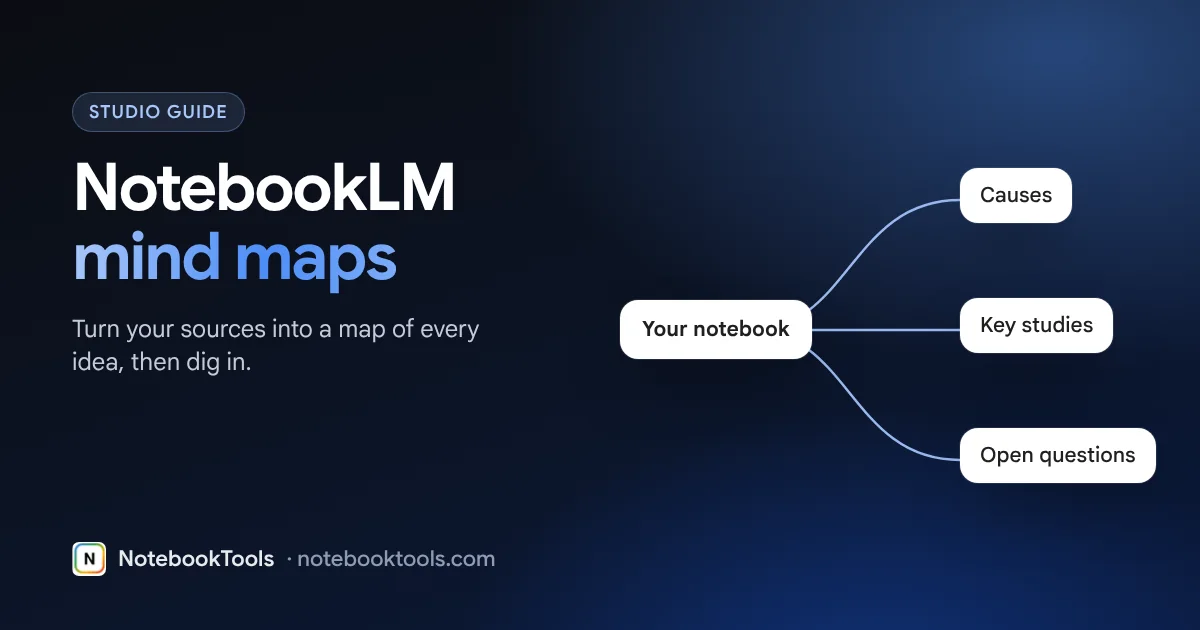
A NotebookLM mind map is a Studio output that turns the sources in a notebook into a branching map of topics. Open a notebook, pick the sources you want, and choose Mind Map in the Studio panel; the map appears there a moment later. You can expand branches, click any topic to ask the chat about it, and download the map or share the notebook.
NotebookLM (now Gemini Notebook) can turn a pile of PDFs, videos and web pages into a single visual overview. The mind map shows the main themes of your sources as a tree. Each branch opens into subtopics. It is one of the Studio outputs, next to Audio Overviews, Video Overviews, slide decks, reports, study guides, flashcards and quizzes.
What a NotebookLM mind map is
A mind map is a diagram with your notebook's central topic in the middle and the key ideas branching out from it. NotebookLM builds it from your sources, not from general web knowledge. That makes it a quick way to see what a set of readings actually covers before you start asking questions.
According to Google's help page, you can zoom and scroll the map, expand or collapse branches, and select any node to ask the chat about that topic. The answer arrives in the chat with citations, like any other answer.
How to make a mind map in NotebookLM
- Open a notebook at notebooklm.google.com, or create one and add your sources (PDFs, Google Docs, web links, YouTube videos, audio or pasted text).
- Choose your sources. In the Sources panel, tick only the sources you want the map to cover. Fewer, related sources give a cleaner map.
- Select Mind Map in the Studio panel. NotebookLM starts generating. It usually takes a short while.
- Open the map. It appears as an item in the Studio panel. Click it to open the full view.
- Explore. Expand branches to see subtopics. Click a node to send a question about it to the chat.
To get a fresh version, Google's help says to delete the existing map from its menu and generate it again. NotebookLM does not edit the old map in place.
Tips to get a better mind map
The map reflects the sources you select. Most problems (vague branches, odd groupings, one source dominating) come from the source mix, not the tool.
- Focus the sources. Map one chapter, one lecture series or one research question at a time. Ten sources on one topic beat fifty on five topics.
- Remove noise. Duplicate PDFs, cookie banners in web pages and long reference lists all pull branches off course. Delete duplicates first.
- Steer with a source of your own. Google's help does not describe a custom prompt box for mind maps. A reliable workaround: ask the chat for an outline of the topics you care about, for example "List the main causes, key people and outcomes covered in these sources, as a structured outline." Save the answer to a note, convert the note to a source, and generate the map with that source selected alongside (or instead of) the originals.
- Split big notebooks. If the map is too broad to read, make two maps from two halves of your sources.
- Regenerate after big changes. The map does not update when you add sources. Delete it and create a new one.
Mind map vs other Studio outputs
A mind map is the fastest way to see structure, but it is not the best tool for every job. Pick the output that matches what you need next.
| Studio output | Best for |
|---|---|
| Mind map | Seeing how topics connect; spotting gaps |
| Study guide or report | Reading a written summary with key terms |
| Flashcards and quizzes | Testing recall |
| Audio Overview | Listening while commuting or walking |
| Video Overview or slide deck | Narrated or visual explanations to watch or present |
Exporting and sharing a mind map
| What you want | How (per Google's help) | Notes |
|---|---|---|
| Save a copy | Use Download inside the mind map window | Downloads the map as a file you can share or print |
| Let others explore it | Share the whole notebook | People with access can open the map in their Studio panel |
| Regenerate it | Delete the map from its menu, then create it again | The old version is gone |
| Open it on a phone | Not supported in the mobile app, per Google's help page | Use a desktop browser |
Google does not document an export to editable mind-map formats (such as OPML or FreeMind) as of this writing. If you need to edit the structure, ask the chat to reproduce the map as a nested bullet outline, then paste that into your mind-mapping app or document.
Limits to know about
- Usage limits. Since September 2026, chat and Studio use is measured with limits that refresh every few hours, up to a weekly cap. Paid Google AI plans get more.
- Source limits. A map can only draw on sources in the notebook: 50 per notebook on the free plan, 100 on Google AI Plus, 300 on Google AI Pro. See our source limits guide.
- Depth. A map summarizes. It will not list every fact, and small details may be grouped into broad branches.
- Accuracy. The map is AI-generated. Click a node and check the cited answer before you rely on a branch.
- Static. You cannot drag nodes or rename branches inside NotebookLM.
Using a mind map to study
Mind maps work best at the start and end of a topic. At the start, they show the shape of the material. At the end, they are a checklist: can you explain every branch without looking?
- Map the unit. Make a notebook per course unit and generate a map from the lecture notes, slides and readings.
- Find the gaps. For each branch you cannot explain, click the node and read the cited answer.
- Test yourself. Generate flashcards or a quiz on the same sources and focus on the weak branches.
- Listen on the go. Create an Audio Overview of the same sources for review away from your desk.
- Redraw from memory. Before the exam, sketch the map on paper and compare it with NotebookLM's version.
For a complete revision routine, read how to use NotebookLM to study, and see NotebookTools for students for importing lecture videos and readings in one click. The NotebookTools Studio tools help you find and play Studio outputs across all your notebooks.
FAQ
How do I make a mind map in NotebookLM?
Open a notebook, select the sources you want covered, and choose Mind Map in the Studio panel. The map appears in Studio when it is ready; click it to open and explore.
Can I export a NotebookLM mind map?
Yes. Google's help page says you can download the map from the mind map window and share the file. Google does not document export to editable mind-map formats, so ask the chat for a nested outline if you need to edit the structure.
Can I edit a NotebookLM mind map?
No. You can expand, collapse and click nodes, but not move or rename them. To change the map, change the selected sources, delete the map and generate a new one.
Why is my NotebookLM mind map too broad?
It covers every selected source. Select fewer, closely related sources, remove duplicates, or add a focused outline as a source and generate the map again.
Does the NotebookLM mind map work on mobile?
Google's help page says the mobile app does not support mind maps yet. Use NotebookLM in a desktop browser.
Is the NotebookLM mind map free?
Yes. Mind maps are available on the free plan, within the chat and Studio usage limits that refresh every few hours up to a weekly cap. Paid plans get more.