
Short answer
To add a YouTube video to NotebookLM, open a notebook, choose to add a source, pick YouTube and paste the video link. The video must be public and have captions (uploaded or auto-generated), because NotebookLM imports the transcript, not the picture. Each video counts as one source, so a free notebook holds up to 50 videos. NotebookLM has no playlist import; a Chrome extension such as NotebookTools can add a whole playlist or channel in one run.
NotebookLM (now Gemini Notebook) can read YouTube videos and answer questions about them, with citations that point back to the transcript. This guide is the complete version: the built-in way to add one video, the limits you will hit, how to bring in a whole playlist or channel, prompts to summarize what you imported, and fixes for videos that refuse to load.
How to add a YouTube video to NotebookLM (the built-in way)
You do not need anything extra to add a single video. NotebookLM accepts YouTube links as a source type.
- Copy the video link. Use the address of the watch page (it contains
watch?v=) or the Share link (youtu.be/...). - Open NotebookLM at notebooklm.google.com and open a notebook, or create a new one.
- Add a source. In the Sources panel, choose to add a source and pick the YouTube option.
- Paste the link and confirm. NotebookLM fetches the transcript. Short videos are ready in seconds; long lectures take longer.
- Ask questions. Once the source shows in the panel, use the chat. Answers cite the parts of the transcript they came from.
Repeat for each video. That is fine for two or three videos, and slow for twenty. The section on playlists covers the faster route.
What NotebookLM actually imports from a video
NotebookLM reads the text transcript of the video: the captions the creator uploaded, or the ones YouTube generated automatically. It does not watch the frames. That has three practical effects:
- No captions, no source. A video without any caption track cannot be imported as a YouTube source.
- Visual-only content is lost. Code on screen, slides that the speaker never reads out, diagrams and on-screen text are not in the transcript, so NotebookLM cannot see them.
- Auto-captions carry their mistakes. Names, technical terms and accents are sometimes transcribed wrongly. If an answer quotes a strange word, check the video at that point.
YouTube in NotebookLM: limits at a glance
| Rule | What it means for YouTube |
|---|---|
| Video visibility | Public videos only. Private videos fail; unlisted and age-restricted videos often fail too. |
| Captions | Required. Uploaded or auto-generated captions both work. |
| What counts | Each video is 1 source. A playlist is not one source; every video in it is its own source. |
| Sources per notebook | 50 on the free plan, 100 on Google AI Plus, 300 on Google AI Pro, 500+ on Google AI Ultra. |
| Notebooks | 100 on the free plan, 500 on Google AI Pro. |
| Size of each source | Up to 500,000 words or 200 MB on every plan. Very long videos may take a while to process. |
| Playlist or channel import | Not built in. Add videos one by one, or use an extension. |
Full details for every plan are in our NotebookLM source limits guide.
How to add a YouTube playlist or channel to NotebookLM
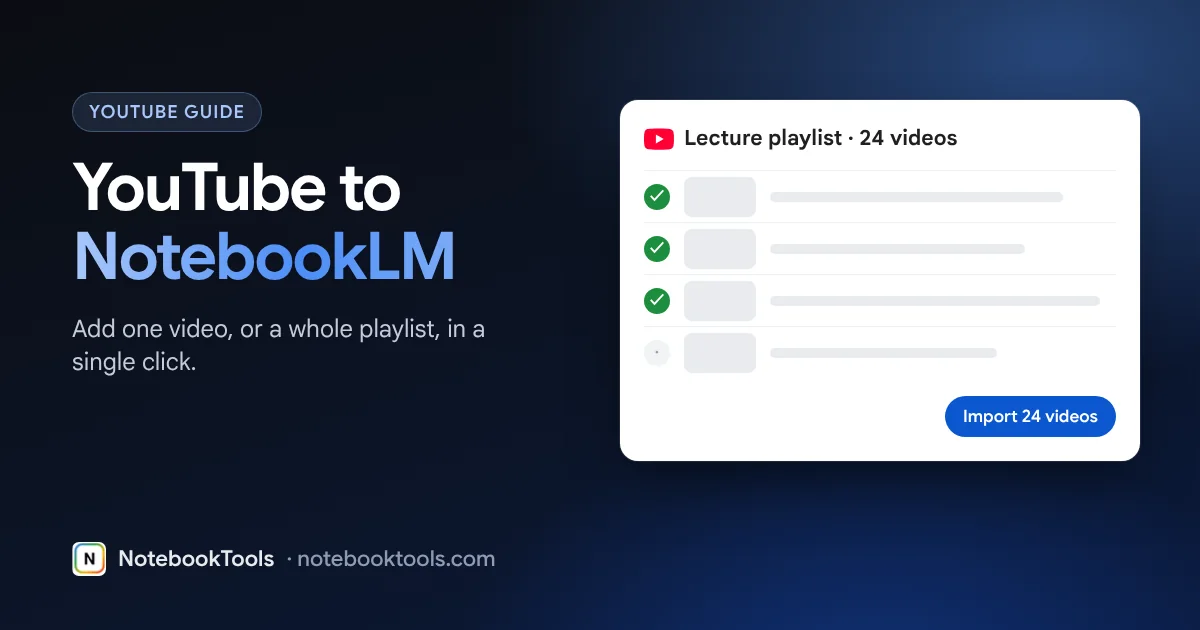
If you paste a playlist link, NotebookLM does not unpack the videos inside it. To get a whole course, lecture series or channel into a notebook you either paste every video link by hand, or use an extension that does it for you. The YouTube to NotebookLM extension from NotebookTools handles this, and bulk import is part of the free plan.
- Install NotebookTools from the Chrome Web Store and stay signed in to NotebookLM in the same Chrome profile.
- Open the playlist page, or the channel's Videos page, on YouTube.
- Click the NotebookLM button that the extension adds to the page. The videos are loaded into the import queue.
- Pick a notebook, or type a name to create a new one.
- Start the import. The queue adds each video as its own source and shows progress. It tracks the notebook's source limit, so a 70-video playlist will not silently overflow a 50-source notebook.
For a single video, the same button sits on every watch page, next to Like and Share. Click it, pick a notebook, and the video is added without leaving YouTube. To mix videos with web pages, open tabs or a pasted list of links, use the bulk import queue.
Big playlists: a free notebook takes 50 sources. Split a 120-video course into three notebooks by module, or keep only the lectures you need. Videos without captions will still fail, so check the queue for failed items when it finishes.
How to summarize a YouTube video in NotebookLM
Once a video is in your notebook, ask for what you need. Plain prompts work well. Here are five to copy. When the notebook holds several videos, select only the one you want in the Sources panel, or name it in the prompt.
Prompt
Summarize this video in 7 bullet points. Start with the main argument, then the supporting points in the order the speaker makes them.
Prompt
List every tool, product, person, book and date mentioned in this video, with one line of context for each.
Prompt
Turn this lecture into study notes: headings for each topic, key definitions in bold, and 5 review questions at the end.
Prompt
What claims does the speaker make without giving evidence? Quote the relevant parts of the transcript.
Prompt
Compare what these videos say about [TOPIC]. Present it as a table with columns: Video, Main claim, Evidence, Where they disagree.
You can also open Studio and generate an Audio Overview, a mind map, a study guide, flashcards or a quiz from the videos. For a bigger set of ready-made prompts, see our best NotebookLM prompts.
Why use NotebookLM for YouTube videos
- Ask instead of re-watching. Find the one point you need in a two-hour lecture without scrubbing the timeline.
- Answers stay grounded. NotebookLM answers from your sources and cites them, so you can check each claim against the transcript.
- Mix formats. Put the video next to the slides PDF, the paper it discusses and your own notes, then ask questions across all of them.
- Study faster. A course playlist becomes outlines, flashcards and practice quizzes. Our guide on using NotebookLM to study shows the full workflow.
Troubleshooting: YouTube video won't import
| Problem | Likely cause | Fix |
|---|---|---|
| Import fails or the source is empty | The video has no captions | Check the CC button on YouTube. If there are no captions, get a transcript another way and add it as pasted text, or upload the audio as an audio source. |
| "Could not import" on a link you can watch | The video is private, unlisted or members-only | Only public videos work. Ask the owner to make it public, or use a transcript. |
| Age-restricted video fails | YouTube requires a sign-in to show it | Treat it like a private video: use a transcript or the audio instead. |
| A very new upload fails | Captions may not be ready yet | Wait until YouTube shows captions on the video, then try again. |
| Can't add more videos | The notebook is at its source limit (50 on Free) | Delete sources, split the topic into another notebook, or upgrade your Google AI plan. |
| Playlist link adds nothing useful | NotebookLM does not unpack playlists | Add the videos individually, or import the playlist with an extension. |
| Answers miss what was on screen | Only the transcript is imported | Add the slides or screenshots as separate sources. |
If the NotebookTools button does not appear, make sure you are on a watch, playlist or channel page (not the YouTube home feed) and that you are signed in to NotebookLM in Chrome. Our support page covers other cases.
Beyond YouTube
YouTube is one of several source types. NotebookLM also takes PDFs, Google Docs, Slides and Sheets, web pages, audio files and pasted text. Our guide to the best ways to import content into NotebookLM compares each method.
FAQ
Can you add a YouTube video to NotebookLM?
Yes. Open a notebook, add a source, choose YouTube and paste the video link. The video must be public and have captions, because NotebookLM imports the transcript.
Can I add a whole YouTube playlist to NotebookLM?
Not with a playlist link alone. NotebookLM adds one video per link. To add a whole playlist or channel at once, use a Chrome extension such as NotebookTools, whose playlist import is free. Each video still counts as one source.
How many YouTube videos can one notebook hold?
Each video is one source, so up to 50 per notebook on the free plan, 100 on Google AI Plus, 300 on Google AI Pro and 500+ on Google AI Ultra.
Why won’t my YouTube video import into NotebookLM?
The usual causes are no captions, a private, unlisted or age-restricted video, or a notebook that is already at its source limit. Public videos with captions import reliably.
Does NotebookLM watch the video or only read the transcript?
It reads the transcript. Anything shown on screen but not said aloud, such as slides or code, is not part of the source. Add those materials as separate sources.
Is there a YouTube to NotebookLM Chrome extension?
Yes, several. NotebookTools adds a NotebookLM button to YouTube watch, playlist and channel pages. It is an independent tool and is not affiliated with Google.